Summary: Do you want to selling the old iPhone 5/5s/4/4s and buy a new iPhone 6s/6? This article teach you how to erase all personal data and setting on
iPhone,iPad permanently and selling your it as new.Before selling the old iPhone,iPad,you must to erase all data from iPhone permanently,in order to avoiding some stolen your personal information.
Whether you want to re-install your iPhone, iPod touch, or iPad as new or you want to sell or give it away to someone else entirely, you first need to make sure you've wiped it clean and erased all of your personal data, including your photos, messages, and files. It only takes a few steps, and few minutes, and it makes sure you're data is protected.
Read more: Erase Private Data on iPhone Permanently Without Restore
How to backup your iPhone or iPad before wiping it
Before you do anything else, make sure you have an up-to-date backup of your iPhone. iCloud automatically makes a backup overnight, as long as you're plugged in and on Wi-Fi, but a manual backup will make sure you're absolutely up to date.
1.Make sure your iPhone or iPad is connected to Wi-Fi. (If you're low on power, plug in as well.)
2.Launch Settings from the Home screen.
3.Tap on iCloud.
4.Tap on Backup.
5.Tap on Back Up Now.
If you prefer to use iTunes, you should also trigger a manual update to make sure you have all of your recent data backed up.
1.Plug your iPhone into your Mac or Windows PC.
2.Launch iTunes.
3.Click on the iPhone icon in the menu bar when it appears.
4.Click on Back Up Now. (Click on Encrypt Backup and add a password— you want the security.)
5.Back up Apps, if asked.
Read more: Backup iPhone data to computer on 1 click with iPhone data transfer.
How to erase all data from your iPhone or iPod touch
As long as you use a passcode, iOS devices are hardware encrypted. That means making your data absolutely inaccessible is as simple as throwing away the encryption key. iOS will still erase everything, however, and return you to the setup process, so that you have a nice, clean device to start over with or sell.
1.Launch the Settings app from the Home screen of your iPhone or iPad.
2.Now tap on General.
3.Scroll all the way to the bottom and tap on Reset.
4.Tap on Erase All Content and Settings.
5.Tap on Erase iPhone.
6.Tap on Erase iPhone again to confirm.
7.Enter your Passcode.
8.Enter your Apple ID password to turn off Activate Lock and remove the device from Find my iPhone.
Once the wiping process is complete, you can set up as a new device, restore from a different backup, or give or sell your device to someone else without worries.
Read more:
how to erase iPhone text messages
how to erase iPhone contacts
Erase iPhone Data:Permanently Erase Contacts,SMS,Photo,Video,Apps, account info, passwords and other personal data from iPhone,wipe everything on iPhone 6/5S/5/4S/4/6S without recovery.
Friday, October 9, 2015
Tuesday, September 29, 2015
How to Erase Data from Old iPhone Before Selling
With iPhone 6s' 12MP iSight and 5MP FaceTime cameras, Apple bumped the specs of the world's most popular digital shooter, giving users a good excuse to create mountains of data. Using iOS 9's built-in Photos app can help you manage this flood of photographs from the moment you press the shutter button.
When you first open the Photos app in iOS 9, you are presented with up to three navigation options: Photos, Albums and, if you are sharing photos with a friend, Shared. In previous versions of Photos, when you clicked on Albums you were presented with Camera Roll, which is a collection of every photo and video on your iPhone, a Favorites album, Bursts for photos taken in rapid succession and Recently Deleted.
Permanently Erase Data from Old iPhone Before Selling and Buy a new iPhone 6s
Whether you want to re-install your iPhone, iPod touch, or iPad as new or you want to sell or give it away to someone else entirely, you first need to make sure you've wiped it clean and erased all of your personal data, including your photos, messages, and files. It only takes a few steps, and few minutes, and it makes sure you're data is protected.Fortunately, there is an app called iPhone Data Eraser which is developed with the aim to erase all data on old iPhone before selling in a simple way.
iPhone Data Eraser is the powerful data eraser designed for iPhone/iPad/iPod device users who want to deleted their wanted data on the iOS surface or permanently erase data from their iPhone forever before selling or get it away to others. Please don’t be worried. With the iOS Data Eraser, just one click to erase personal data with nothing recoverable permanently. So the next thing you need to do is download the free trial version below and have try.
How to Permanently Erase iPhone Data Before Selling
Step1: Download and install iPhone Data Eraser on the computer
Please download and install the iPhone Data Eraser on the computer above the download button, then connect your iPhone to the computer via USB, the main window will pop up as below:

Step2: Choose Erasing Option in the window of program
There are 4 ways to permanently delete data in the window program, “Express Cleanup” “Erase Private Data” “Erase Deleted Files” and “Erase All Data“, but on this step you just need to click the “Erase Deleted Files” option in the left side bar which can completely erase all deleted data on your device, including photos, logins, bank or credit card account information, caches, contacts, etc.

Step3: Start to analyze and scan the deleted files on iPhone
Click “Start Scan” button and the program will start analyzing and scanning the deleted data on your iPhone. It will take a few minutes for scanning.

Step4: Erase deleted files on iPhone
When scan is completed, it will remove all data and settings on your device. Select the data you want to delete and click “Erase Now” to begin permanently erasing the deleted files.

Step5: Click “Done” and successfully erased
After you successfully erased the data on iPhone, it won’t be able to recover them with any method forever.

Note: This iPhone Data Eraser is indeed an amazing tool. As far as I know, iOS Data Eraser is the best option for secure data deletion for any iOS powered device.
Read more:
Free Up iPhone and iPad Storage Space and Speed Up iPhone
How to delete iPhone messages before selling
![]() |
| Erase Data from iPhone Before Selling and buy iPhone 6s |
Permanently Erase Data from Old iPhone Before Selling and Buy a new iPhone 6s
Whether you want to re-install your iPhone, iPod touch, or iPad as new or you want to sell or give it away to someone else entirely, you first need to make sure you've wiped it clean and erased all of your personal data, including your photos, messages, and files. It only takes a few steps, and few minutes, and it makes sure you're data is protected.Fortunately, there is an app called iPhone Data Eraser which is developed with the aim to erase all data on old iPhone before selling in a simple way.
iPhone Data Eraser is the powerful data eraser designed for iPhone/iPad/iPod device users who want to deleted their wanted data on the iOS surface or permanently erase data from their iPhone forever before selling or get it away to others. Please don’t be worried. With the iOS Data Eraser, just one click to erase personal data with nothing recoverable permanently. So the next thing you need to do is download the free trial version below and have try.
How to Permanently Erase iPhone Data Before Selling
Step1: Download and install iPhone Data Eraser on the computer
Please download and install the iPhone Data Eraser on the computer above the download button, then connect your iPhone to the computer via USB, the main window will pop up as below:
Step2: Choose Erasing Option in the window of program
There are 4 ways to permanently delete data in the window program, “Express Cleanup” “Erase Private Data” “Erase Deleted Files” and “Erase All Data“, but on this step you just need to click the “Erase Deleted Files” option in the left side bar which can completely erase all deleted data on your device, including photos, logins, bank or credit card account information, caches, contacts, etc.
Step3: Start to analyze and scan the deleted files on iPhone
Click “Start Scan” button and the program will start analyzing and scanning the deleted data on your iPhone. It will take a few minutes for scanning.
Step4: Erase deleted files on iPhone
When scan is completed, it will remove all data and settings on your device. Select the data you want to delete and click “Erase Now” to begin permanently erasing the deleted files.
Step5: Click “Done” and successfully erased
After you successfully erased the data on iPhone, it won’t be able to recover them with any method forever.
Note: This iPhone Data Eraser is indeed an amazing tool. As far as I know, iOS Data Eraser is the best option for secure data deletion for any iOS powered device.
Read more:
Free Up iPhone and iPad Storage Space and Speed Up iPhone
How to delete iPhone messages before selling
How to Erase iPhone Data and Setting Without Jailbreak
Jailbroken iPhone benefits you a lot. You can download a world of apps which are not available in Apple App Store, access the iOS system, and change wireless providers. However, there is one thing you have to face: whenever you need to restore your iPhone, the jailbreak features will be lost. However, tt's hard not to delete iPhone data if you have lots of personal information on your iPhone. Don't worry about it. There are still workarounds to delete iPhone data without losing jailbreak Check out the following 3 simple ways to delete iPhone (supporting iOS 9) data without losing jailbreak.
In many cases, we need to completely delete iPhone data without restored, just like reselling iPhone, resending to factory, giving a donation to someone and so on. If your iDevice has been jailbroken before, you must not want to jailbreak it again, because it’s a waste of time and effort. Fortunately, iOS Data Eraser comes forward.
iOS Data Eraser and iOS Data Eraser for Mac is the excellent and ideal software for resetting an iPhone from losing it jailbroken and the new update is compatible to iOS 8.2.x. Just one click can get you wipe all setting and personal content with most effective and safest data protective way. You can download it to have a try. Below are the simple steps to erase iPhone data with this program.
The Key Features of iOS Data Eraser:
-Erase Private Data: selectively delete private data from your iPhone without restore;
-Erase Deleted Files: permanently remove these files you have deleted on your iPhone;
-Erase All Data: delete all data on your iPhone and set it as a new phone;
-Support new iOS 9, iPhone 6S Plus, iPhone 6S, iPhone 6 Plus/6/5s/5/4;
Tutorial: Steps to Delete iPhone Data and Setting Without Losing Jailbreak
Step 1. Launch the program and get iPhone connected
Download and install the corresponding trial version of iOS Data Eraser for your computer. Launch it and connect your iPhone to computer by using its USB cable.

Step 2. Erase iPhone data without losing jailbreak
Once your iPhone is detected, you are allowed to choose the right featurn you want in the left sidebar to erase junk files, cookies, cache, private data, deleted files or even all data and settings on your iPhone, as well as iPad and iPod touch.
Express Cleanup: clear junk files on your iOS devices, like log files, photo/video cache, iTunes syncing cache, download temp files, app cache, app cookies, app temp files and more, so as to free up space on your device, speed up it.

Erase Private Data: Permanent erase Safari cache, Safari history, Safari cookies, keyboard cache, message, message attachments, call history, notes, photos, etc. on your iOS devices.

Erase Deleted Files: Complete remove messages, iMessage, contacts, call history, facetime, calendar, reminders, notes, Safari bookmarks, photos, videos and so on ensure nothing recoverable.

Erase All Data: Permanent erase all data and settings on your iPhone, setting it as a new phone without losing jailbreak.

You can also compress your iOS device captured photos, uninstall not used apps from your iPhone, iPad and iPod touch to reclaim more storage with the help of this iOS Data Eraser tool.
Read More:
Erase All Content and Settings on iPhone Permanenty
How to wipe all iPhone data before selling
How to erase iPhone contacts before selling
![]() |
| Erase iPhone Data and Setting Without Jailbreak |
iOS Data Eraser and iOS Data Eraser for Mac is the excellent and ideal software for resetting an iPhone from losing it jailbroken and the new update is compatible to iOS 8.2.x. Just one click can get you wipe all setting and personal content with most effective and safest data protective way. You can download it to have a try. Below are the simple steps to erase iPhone data with this program.
The Key Features of iOS Data Eraser:
-Erase Private Data: selectively delete private data from your iPhone without restore;
-Erase Deleted Files: permanently remove these files you have deleted on your iPhone;
-Erase All Data: delete all data on your iPhone and set it as a new phone;
-Support new iOS 9, iPhone 6S Plus, iPhone 6S, iPhone 6 Plus/6/5s/5/4;
Tutorial: Steps to Delete iPhone Data and Setting Without Losing Jailbreak
Step 1. Launch the program and get iPhone connected
Download and install the corresponding trial version of iOS Data Eraser for your computer. Launch it and connect your iPhone to computer by using its USB cable.
Step 2. Erase iPhone data without losing jailbreak
Once your iPhone is detected, you are allowed to choose the right featurn you want in the left sidebar to erase junk files, cookies, cache, private data, deleted files or even all data and settings on your iPhone, as well as iPad and iPod touch.
Express Cleanup: clear junk files on your iOS devices, like log files, photo/video cache, iTunes syncing cache, download temp files, app cache, app cookies, app temp files and more, so as to free up space on your device, speed up it.
Erase Private Data: Permanent erase Safari cache, Safari history, Safari cookies, keyboard cache, message, message attachments, call history, notes, photos, etc. on your iOS devices.
Erase Deleted Files: Complete remove messages, iMessage, contacts, call history, facetime, calendar, reminders, notes, Safari bookmarks, photos, videos and so on ensure nothing recoverable.
Erase All Data: Permanent erase all data and settings on your iPhone, setting it as a new phone without losing jailbreak.
You can also compress your iOS device captured photos, uninstall not used apps from your iPhone, iPad and iPod touch to reclaim more storage with the help of this iOS Data Eraser tool.
Read More:
Erase All Content and Settings on iPhone Permanenty
How to wipe all iPhone data before selling
How to erase iPhone contacts before selling
How to Erase Private Data on iPhone Permanently Without Restore
"Hello, I need to permanently wipe data (text messages, contacts, photos, videos) off iPhone 4s, because I have a new iPhone 5c, and I want to sell my old iPhone 4s, but there are many Privacy Information stored in my iPhone 4s, even though I deleted them, but I tried some data recovery program, I was totally surprised to learn that it can be able to restore my deleted text messages, contacts, photos from my iPhone 4s, I'm very worried about, if sell my iPhone to others, they may recover my personal data. So, I want to know if there any ways that can permanently deleted, erase everything from iPhone 4s without restoring, please help! recommend some method or some iPhone erase software!"--Ask by Lisa
Erase everyting on iPhone before selling
Are you looking for a way to completely remove your private data like Safari history, cookies, browsing history, input history, App Store search history, deleted data, keyboard caches as well as other data you know they’re important or sensitive: text messages, photos, contacts, call history, etc. on iPhone without restore. The folllowing tutorial will shows you how to erase all iPhone data permanently with a click by using iPhone Data Eraser.
With the help of this iPhone data eraser software,you can erase iPhone data without restore before selling.
Now, download and install the free trial version on your computer to have a try!
Tutorial: Steps to Permanent Erase Private Data on iPhone
Step 1. Launch the iPhone Data Eraser and connect iPhone to computer
After downloading and installing the program, launch it on your computer, meanwhile, connect your iPhone to computer via its USB cable. Once your device is successfully detected, you can see the window as below.

Step 2. Select and erase private data on your iPhone
Click “Erase Private Data” in the left sidebar, then click “Start” button on the right to analyze and scan the private data on your iPhone, after a while, all the deletable data will be shown in the window on the right.

Now you are allowed to check and view details. Just check the unwanted data and click “Erase Now”. In the prompt, type the word “Delete” to confirm the deletion.

When the deletion is completed, you will see the completed screen as below.

Erase everyting on iPhone before selling
Are you looking for a way to completely remove your private data like Safari history, cookies, browsing history, input history, App Store search history, deleted data, keyboard caches as well as other data you know they’re important or sensitive: text messages, photos, contacts, call history, etc. on iPhone without restore. The folllowing tutorial will shows you how to erase all iPhone data permanently with a click by using iPhone Data Eraser.
![]() |
| Erase Private Data on iPhone |
Now, download and install the free trial version on your computer to have a try!
Tutorial: Steps to Permanent Erase Private Data on iPhone
Step 1. Launch the iPhone Data Eraser and connect iPhone to computer
After downloading and installing the program, launch it on your computer, meanwhile, connect your iPhone to computer via its USB cable. Once your device is successfully detected, you can see the window as below.
Step 2. Select and erase private data on your iPhone
Click “Erase Private Data” in the left sidebar, then click “Start” button on the right to analyze and scan the private data on your iPhone, after a while, all the deletable data will be shown in the window on the right.
Now you are allowed to check and view details. Just check the unwanted data and click “Erase Now”. In the prompt, type the word “Delete” to confirm the deletion.
When the deletion is completed, you will see the completed screen as below.
How to Free Up iPhone and iPad Storage Space and Speed Up iPhone
iCloud Photo Library, part of Apple's iCloud service, now gives you a more convenient way to organize and store all your photos and videos across all your devices. Make an edit on your iPhone, and it's automatically updated on your iPad. Not only that, iCloud Photo Library gives you the option to only keep storage optimized copies of your photos and videos if you choose in order to save storage space. For some people, that could mean a few gigabytes of extra storage. All you've got to do is change some settings!
Your iPad becomes increasingly slow? You can not install the beloved games on your iPad? You can’t take any more photos or videos. You can not install the latest version of iOS. You can’t download the TV show you want to watch. All in all, there is too much burden on your iPad, you have to find out and clean up all these junk files, so as to free up space for your device. To free up storage space on your iPad, as well as iPhone and iPod touch, you have to praise it is a very helpful tool, which named iOS Data Eraser.
iOS Data Eraser is a comprehensive data management and removal software which allows you clean up junk files, compress photos, uninstall unused apps, erase private/deleted data, and even erase all data and settings on your iPhone, iPad or iPod touch with ease. All the erased data will permanentle remove from your device ensure nothing recoverable. At present, you can clicking the corresponding button below to download a trial version, and following the guide to speed up your iPad.
Read this use guide to Free up Space on iPhone by Removing App Caches
Supported iDvices Version: iPad Air 2, iPad mini 3, iPad mini 2, iPad 1, iPad 2, The new iPad, iPad with Retina Display, iPad mini, etc., as well as iPhone 4, iPhone 4S, iPhone 5, iPhone 5C, iPhone 5S, iPhone 6, iPhone 6 Plus, iPhone 6s, iPod touch 4, iPod touch 5 and so on.
How to Free Up Space to Speed Up iPad and iPhone
Step 1. Run the iOS Data Eraser and get your iPad connected
Install the iOS Data Eraser program on your computer after downloading, after that, it will automatically launch. At the same time, take out your iPad’s USB cable to connect it to your computer. Once the program recognize your device, you can see the screen as below picture.
Step 2. Free up space on your iPad
In the main interface, you can see sereval options in the left column, all of them can be varying degrees to free up space on your device.
Express Cleanup: Locates and selectivly cleans junk files from your device.
Photo Compress: Selecting to compress your iPad captured photos to reclaim more storage.
Unused App Eliminator: Scan and uninstall not used apps that you haven’t used for at least 30 days from your iPad to get more storage.
Erase Private Data: Permanently delete all private data like Safari history, Cookies, Cache, App Store search history, input history, contacts, messages, photos, videos, and more stored on your iPad device.
Erase Deleted Files: Completely remove deleted pictures, videos, call logs, text messages and more on your device without effect on the OS of your device.
Erase All Data: Completely wipe all personal data and settings from device without rooting, restoring to device’s factory setting.
Note: All the erased data can not being restored ever using the most professional data recovery program, so, you’d better backup the data you may still wanted from your iPod before wiping, so that you can recover them whenever you need.
Related Tutorial: How to Backup Data from iPhone to Computer
How to Erase iPhone Junk Files Permanently
How to Erase iPhone data permanently
Your iPad becomes increasingly slow? You can not install the beloved games on your iPad? You can’t take any more photos or videos. You can not install the latest version of iOS. You can’t download the TV show you want to watch. All in all, there is too much burden on your iPad, you have to find out and clean up all these junk files, so as to free up space for your device. To free up storage space on your iPad, as well as iPhone and iPod touch, you have to praise it is a very helpful tool, which named iOS Data Eraser.
![]() |
| Free Up iPhone and iPad Storage Space |
Read this use guide to Free up Space on iPhone by Removing App Caches
Supported iDvices Version: iPad Air 2, iPad mini 3, iPad mini 2, iPad 1, iPad 2, The new iPad, iPad with Retina Display, iPad mini, etc., as well as iPhone 4, iPhone 4S, iPhone 5, iPhone 5C, iPhone 5S, iPhone 6, iPhone 6 Plus, iPhone 6s, iPod touch 4, iPod touch 5 and so on.
How to Free Up Space to Speed Up iPad and iPhone
Step 1. Run the iOS Data Eraser and get your iPad connected
Install the iOS Data Eraser program on your computer after downloading, after that, it will automatically launch. At the same time, take out your iPad’s USB cable to connect it to your computer. Once the program recognize your device, you can see the screen as below picture.
Step 2. Free up space on your iPad
In the main interface, you can see sereval options in the left column, all of them can be varying degrees to free up space on your device.
Express Cleanup: Locates and selectivly cleans junk files from your device.
Photo Compress: Selecting to compress your iPad captured photos to reclaim more storage.
Unused App Eliminator: Scan and uninstall not used apps that you haven’t used for at least 30 days from your iPad to get more storage.
Erase Private Data: Permanently delete all private data like Safari history, Cookies, Cache, App Store search history, input history, contacts, messages, photos, videos, and more stored on your iPad device.
Erase Deleted Files: Completely remove deleted pictures, videos, call logs, text messages and more on your device without effect on the OS of your device.
Erase All Data: Completely wipe all personal data and settings from device without rooting, restoring to device’s factory setting.
Note: All the erased data can not being restored ever using the most professional data recovery program, so, you’d better backup the data you may still wanted from your iPod before wiping, so that you can recover them whenever you need.
Related Tutorial: How to Backup Data from iPhone to Computer
How to Erase iPhone Junk Files Permanently
How to Erase iPhone data permanently
Thursday, July 30, 2015
How to Wipe All Data from old iPhone Permanently Before Selling
Part 1: iPhone 6S News
Part 2: How to Erase All Data from iPhone Before Selling
Part 3: More related articles
Part 1: Apple iPhone 6S Release Date rumours, features, News, Price and Specs
In 2014, Apple released the iPhone 6, which had a slightly larger profile and display than its predecessor, and the 6 Plus, which, equipped with its supersized 5.5-inch display, marked the company's first foray into "phablet" territory. In June, reports surfaced suggesting that the new iPhone could be slightly thicker than the previous models to accommodate a more enduring battery and, possibly, ForceTouch.
While there has been news that, iPhone 6S basic shape with iPhone 6 not bad, but we still have a little bit of fantasy, that Apple will be a little of its shape redesigned. Now there are foreign media for the first time a new generation of iPhone exposure of frontal, looks exactly the same with the iPhone 6, but the message source also determined not sapphire glass, the screen is still 5.5 inches, 4.7 inches of course.
In addition, the report also mentioned that in order to make way for volume production iPhone6S new production of basic iPodtouch is stopped, of course, the latter itself is not a great demand. For the next-generation iPhone, you can now secure in energy on the configuration, because this is its focus, such as carrying A9 processor, while the camera raised to 12 million pixels, built-in 2GB memory and so on.
Apple unveiled iOS 9 at its Worldwide Developers Conference on June 8. Though much of the news was peripheral to the iPhone -- an update to Siri, enhancements to Apple Pay, new map functionality, and a new News app -- there were also promises made about improvements in animation and scrolling on all iOS devices, and extended battery life on the iPhone. Apple says the operating system's new low-power mode could extend battery life by three hours on some devices.
Part 2: How to Erase All Data from iPhone Before Selling
The Best Way to Delete iPhone Data Permanently with iPhone Data Eraser without Restore
To ensure that erase everything on iPhone cannot be recovered by any data recovery app, a reliable data delete tool is in needed here, which can complete this task perfectly and make it sure that those deleted data cannot be recovered any longer. iPhone Data Eraser software is your best choice, which designed to erase iPhone data permanently and those deleted iPhone data cannot be recovered any more.
Download the free trial version of this program to have a try!
Step 1:Launch the program and connect your iPhone
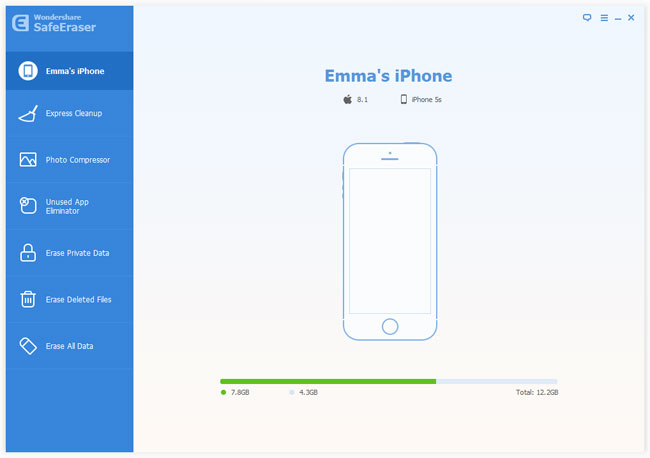
Launch the iPhone Data Eraser on your computer after installation, then take out your Apple USB cable to connect your iOS device to your computer. As soon as your device is recognized, the primary interface will pop up as the below picture, the information of your iPhone will be shown on the right side at the same time.
Step 2: Permanently erase your iPhone data
As you can see, there are four options providing by the iPhone Data Eraser for you to delete your corresponding iPhone data, they are “Express Cleanup“, “Erase Private Data“, “Erase Deleted Files” and “Erase All Data“, according to your need, you can choose the appropriate option, here, we click “Erase All Data” to enter the erased interface.
First of all, you should choose the security level before erasing all the data on your device, there are three levels you can choose here, they are low, medium and high level, the higher level, the stronger erasure. If you don’t choose, default is medium here.
If everything is OK, please type the word “delete” in the text box to confirm the permanent deletion of the data.
You will see the completed screen as below once the deletion is finish.
Free download the iOS Data Eraser:
Tips: Delete data on the iPhone for selling: Now, you can start deleting all data on your old iPhone. To ensure that the deleted data cannot be recovered by any data recovery software, you need to choose a reliable tool which can finish this work perfectly and won't remember any data by itself. There are a few iPhone data eraser apps on the market, but almost all of them can't wipe the data completely. They can only clean the data under their own directory. The most secure way is using PC-end software. It always can do the cleaning work better.
More related articles:
How to delete SMS on iPhone before selling
How to delete contacts on iPhone before selling
Part 2: How to Erase All Data from iPhone Before Selling
Part 3: More related articles
Part 1: Apple iPhone 6S Release Date rumours, features, News, Price and Specs
In 2014, Apple released the iPhone 6, which had a slightly larger profile and display than its predecessor, and the 6 Plus, which, equipped with its supersized 5.5-inch display, marked the company's first foray into "phablet" territory. In June, reports surfaced suggesting that the new iPhone could be slightly thicker than the previous models to accommodate a more enduring battery and, possibly, ForceTouch.
While there has been news that, iPhone 6S basic shape with iPhone 6 not bad, but we still have a little bit of fantasy, that Apple will be a little of its shape redesigned. Now there are foreign media for the first time a new generation of iPhone exposure of frontal, looks exactly the same with the iPhone 6, but the message source also determined not sapphire glass, the screen is still 5.5 inches, 4.7 inches of course.
![]() |
| Wipe All Data from old iPhone Before Selling |
Apple unveiled iOS 9 at its Worldwide Developers Conference on June 8. Though much of the news was peripheral to the iPhone -- an update to Siri, enhancements to Apple Pay, new map functionality, and a new News app -- there were also promises made about improvements in animation and scrolling on all iOS devices, and extended battery life on the iPhone. Apple says the operating system's new low-power mode could extend battery life by three hours on some devices.
Part 2: How to Erase All Data from iPhone Before Selling
The Best Way to Delete iPhone Data Permanently with iPhone Data Eraser without Restore
To ensure that erase everything on iPhone cannot be recovered by any data recovery app, a reliable data delete tool is in needed here, which can complete this task perfectly and make it sure that those deleted data cannot be recovered any longer. iPhone Data Eraser software is your best choice, which designed to erase iPhone data permanently and those deleted iPhone data cannot be recovered any more.
Download the free trial version of this program to have a try!
Step 1:Launch the program and connect your iPhone
Launch the iPhone Data Eraser on your computer after installation, then take out your Apple USB cable to connect your iOS device to your computer. As soon as your device is recognized, the primary interface will pop up as the below picture, the information of your iPhone will be shown on the right side at the same time.
Step 2: Permanently erase your iPhone data
As you can see, there are four options providing by the iPhone Data Eraser for you to delete your corresponding iPhone data, they are “Express Cleanup“, “Erase Private Data“, “Erase Deleted Files” and “Erase All Data“, according to your need, you can choose the appropriate option, here, we click “Erase All Data” to enter the erased interface.
First of all, you should choose the security level before erasing all the data on your device, there are three levels you can choose here, they are low, medium and high level, the higher level, the stronger erasure. If you don’t choose, default is medium here.
If everything is OK, please type the word “delete” in the text box to confirm the permanent deletion of the data.
You will see the completed screen as below once the deletion is finish.
Free download the iOS Data Eraser:
Tips: Delete data on the iPhone for selling: Now, you can start deleting all data on your old iPhone. To ensure that the deleted data cannot be recovered by any data recovery software, you need to choose a reliable tool which can finish this work perfectly and won't remember any data by itself. There are a few iPhone data eraser apps on the market, but almost all of them can't wipe the data completely. They can only clean the data under their own directory. The most secure way is using PC-end software. It always can do the cleaning work better.
More related articles:
How to delete SMS on iPhone before selling
How to delete contacts on iPhone before selling
Subscribe to:
Posts (Atom)